

Key Takeaways
The App Store's Role Before You Even Tap Download
Before an app ever reaches your phone, it passes through a gatekeeping process run by the platform's app marketplace - Apple's App Store or Google Play for most Americans. Developers submit their apps in a packaged format, and the store conducts a review that checks for policy violations, malware signatures, and basic functionality standards.
Once approved, the store cryptographically signs the app package. Think of this signature as a tamper-evident seal: it mathematically ties the app's contents to the store's identity. If anyone modifies the app after signing, the signature breaks and the device will reject it.
This is also when the store generates the listing metadata you see - screenshots, file size estimates, version history, and the permissions the app will request. That listed download size is typically the compressed package; the actual installed footprint is often larger.
3.5M+
Apps available on Google Play Store
As of recent platform reporting, Google Play hosts over 3.5 million apps subject to its review and signing process.
2-3×
Installed size vs. download size ratio
Installed apps frequently occupy two to three times the compressed download size once extracted, compiled, and initialized.
~60%
Apps requesting location access
Research from mobile analytics firms suggests roughly 60% of popular apps request some form of location permission during first launch.
What Happens During the Download Itself
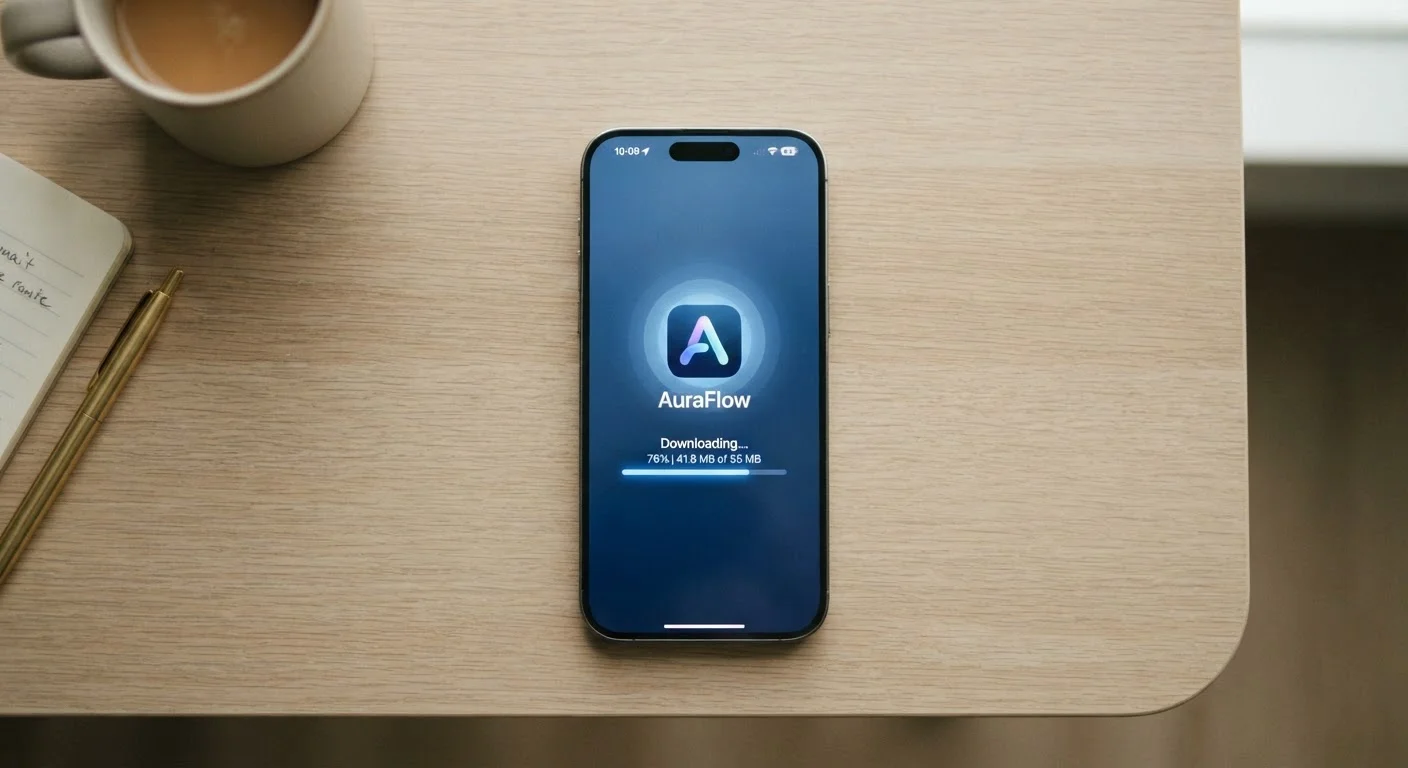
When you tap the download button, your device opens a secure HTTPS connection to the store's content delivery network (CDN) - a distributed system of servers positioned geographically close to you to minimize transfer time. The app arrives as a compressed archive, often an APK on Android or an IPA on iOS.
The download doesn't land as one complete file and then stop. It streams in chunks, which is why you sometimes see partial progress if your connection drops. Once all chunks arrive, the store client reassembles and verifies them against a checksum - a fingerprint of the expected file - to confirm nothing was corrupted or altered in transit.
Your device's operating system also checks available storage at this stage. If space is insufficient, the install is refused before any files are written to your device's flash memory.
Download apps only on a trusted Wi-Fi network rather than public hotspots. Even though app packages are signed and verified, your broader network traffic - including account credentials entered during first setup - remains a separate exposure.
Public networks can expose unrelated data transmitted alongside the app download, particularly during the account login that immediately follows installation.
Check the listed app size before downloading on a metered mobile plan. The figure shown in the store reflects the compressed package - the actual data pulled during download and first-launch initialization can be significantly higher.
First-launch asset downloads are not always included in the store's advertised size, making it easy to unknowingly consume a large portion of a limited data plan.
Installation: Unpacking and Placing the App
Installation is more complex than simply copying a file to your home screen. The operating system extracts the app package and places different components in different locations based on their function. Executable code typically goes into a protected directory that other apps cannot access - this sandboxing is fundamental to mobile security.
On Android, some code is compiled from an intermediate format into machine code optimized for your specific processor during installation. This step, called AOT compilation, is why installing a large Android app can take noticeably longer than the download itself.
On iOS, a similar optimization process called bitcode compilation may occur, though Apple has moved toward delivering pre-compiled binaries tailored to specific device types. In either case, the result is executable code tuned to your hardware.
The OS also registers the app in its package database - a system-level registry that tracks which apps are installed, their version numbers, and where their files live. This is what allows your phone to display the app icon, route deep links to it, and manage updates. For more on how multiple apps and devices stay in sync, see how sync actually works across your devices.
First Launch: Initialization and Permissions
Opening an app for the first time is a distinctly different event from every subsequent launch. The app's code runs a first-run routine that sets up the local environment it needs to operate. This typically includes creating a local database to store your preferences, generating a unique device identifier for the app's servers to recognize your installation, and downloading any additional assets - like fonts, initial content, or configuration files - that weren't bundled in the main package.
Permission dialogs appear at this stage because iOS and Android require apps to request sensitive access at runtime rather than silently during installation. When you see a prompt asking for location, camera, or microphone access, the OS is enforcing this boundary - the app cannot use those hardware features until you explicitly respond. Understanding what you're granting matters; what app permissions really mean is worth understanding before tapping Allow.
The app may also register with push notification services during first launch, establishing a unique token that lets servers send notifications to your specific installation on your specific device.
What Stays on Your Device After Installation
Once running, an app occupies several distinct storage areas. The core application files sit in a read-only bundle. A separate writable directory holds user-generated data - your account info, saved content, and preferences. A cache directory holds temporary files the app stores to avoid re-downloading the same data repeatedly.
This multi-folder structure is why your phone's storage breakdown shows separate figures for an app's app size, documents and data, and sometimes cache. Clearing the cache removes temporary files but preserves your personal data; uninstalling removes all directories.
Apps that weren't kept current also accumulate technical debt over time - outdated code that may conflict with OS updates or introduce security gaps. What's actually at stake when you skip updates is worth understanding if you have a long list of pending installs. And once you're comfortable with how apps install and run, exploring commonly misunderstood app settings can meaningfully change how your apps behave day to day.
All of this infrastructure - from CDN delivery to sandboxed storage directories - exists largely out of sight. But knowing it's there gives you a clearer picture of what your device is managing, and why choices like granting permissions or skipping updates carry real consequences.