

Key Takeaways
App Permissions
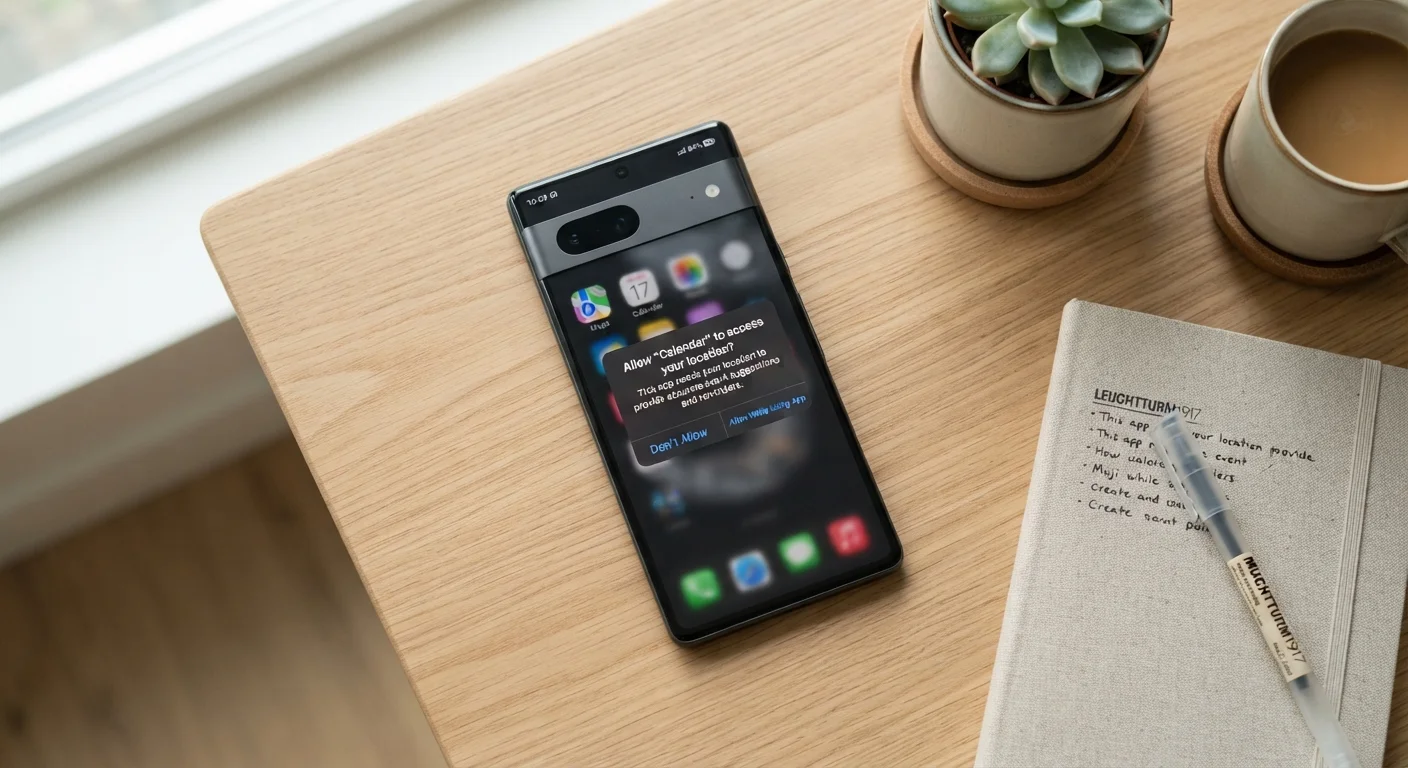
App permissions are requests made by a smartphone application to access specific features or data on your device - such as your camera, location, microphone, or contacts. When you install or first open an app, your phone's operating system asks whether you want to allow that access. You can typically approve, deny, or limit each permission individually.
On both Android and iOS, permissions are enforced at the operating system level, meaning an app cannot access a restricted resource without an explicit user grant - regardless of what the app's code attempts to do.
How App Permissions Actually Work
When you tap "Allow" on a permission prompt, you're instructing your phone's operating system to open a specific gateway between the app and a hardware feature or data store. The app itself doesn't hold your data - it requests access through a controlled channel, and the OS acts as a gatekeeper.
Modern smartphones use a runtime permission model, meaning most sensitive permissions are requested the moment a feature needs them, not all at once during installation. This design gives you context: if a photo-editing app asks for camera access when you tap the camera icon, the reason is obvious. If a flashlight app requests your contacts list before doing anything else, that mismatch is a signal worth heeding.
Both Android and iOS organize permissions into categories. Common ones include:
- Location - precise GPS coordinates or general area
- Camera - still photos and video recording
- Microphone - audio capture
- Contacts - names, phone numbers, and email addresses
- Storage/Files - reading or writing files on your device
- Notifications - sending alerts to your lock screen
- Bluetooth - connecting to nearby devices
For a broader look at how your device manages what apps can and can't do, see our guide to keeping devices secure.
Permissions Vary by Operating System Version
The granularity of available permission options - such as 'approximate' vs. 'precise' location or 'selected photos' vs. 'all photos' - depends on which version of iOS or Android your device is running. Older OS versions may offer fewer choices. Keeping your operating system updated generally expands your permission control options, in addition to the security benefits.
Which Permissions Carry the Most Privacy Weight
Not all permissions are equal. Some open a narrow door; others hand an app a key to information that is genuinely sensitive.
Location is widely considered the highest-risk permission. Precise, continuous location data can reveal where you live, work, worship, and seek medical care. Most apps that need location work fine with the "approximate" or "while using" setting rather than precise, always-on access.
Microphone and camera access are also significant. These permissions are typically legitimate for apps like video calling, voice messaging, or QR-code scanning. Outside those use cases, an app requesting microphone access at launch - before any audio feature is triggered - warrants a closer look.
Contacts permission gives an app access to every name, number, and email address stored on your phone. Some apps use this to help you find friends; others use it for targeted advertising or to upload your address book to their servers. If the feature requiring contacts isn't central to why you use the app, denying this permission is a reasonable default.
45%
Apps requesting location access in background
Research from privacy analytics firms has found that a significant share of popular apps request always-on location access even when their core function doesn't require it.
1 in 3
Users who review app permissions regularly
Surveys on mobile privacy habits suggest only a minority of smartphone users periodically audit the permissions they've granted to installed apps.
The most misunderstood settings in everyday apps often include permission toggles that users never revisit after initial setup - a habit worth changing.
When It's Reasonable to Grant - or Deny - Access
The core question to ask is whether the permission matches the app's core purpose. A navigation app needs location. A recipe app almost certainly doesn't. A ride-sharing app might reasonably need location while in use, but not always in the background.
Start With Your Most-Used Apps
Rather than auditing every app at once, open your device's permission manager and focus on the three or four apps you use most. Check whether location, microphone, or contacts access is set more broadly than those apps actually need. Small adjustments to frequently used apps tend to have the biggest practical impact on your data exposure.
Denying a permission is rarely catastrophic. In most cases, the app simply can't use that specific feature - the rest of the app continues to function normally. iOS and Android both allow partial permissions, such as granting access to selected photos rather than your entire library, or allowing location only while the app is open.
Free apps supported by advertising sometimes request wider permissions than their features require because audience data - location history, demographic signals inferred from contacts - has commercial value. This doesn't make every free app untrustworthy, but it's useful context when evaluating a request. For a related perspective, browser extensions present similar trade-offs between functionality and data access.
How to Review and Adjust Permissions on Your Device
Both major mobile platforms make it straightforward to audit what you've already approved.
On iOS: Go to Settings → Privacy & Security. Each permission category lists every app that has requested it, along with what level of access you granted. You can change any setting here at any time.
On Android: Go to Settings → Apps → select an app → Permissions. Alternatively, go to Settings → Privacy → Permission Manager for a category-by-category view across all apps.
A useful habit is reviewing permissions periodically - especially for apps you've had for a long time or rarely use. Apps you haven't opened in months may still hold permissions granted years ago under different expectations. Both iOS and Android can automatically revoke permissions for unused apps, but confirming this is enabled in your settings is worth a moment of your time.
For context on how apps are structured before they even reach your home screen, see everything that happens between downloading an app and opening it.