

Key Takeaways
Screen Resolution
Screen resolution describes the total number of pixels a display can show, expressed as width × height (for example, 1920×1080). More pixels generally means a sharper, more detailed image. Manufacturers also use shorthand labels - HD, 4K, QHD, Retina - to describe common resolution tiers.
Resolution alone doesn't determine perceived sharpness; pixel density (pixels per inch, or PPI) also factors in screen size, meaning a 4K phone screen can look crisper than a 4K TV viewed at the same distance.
What the Numbers Actually Mean
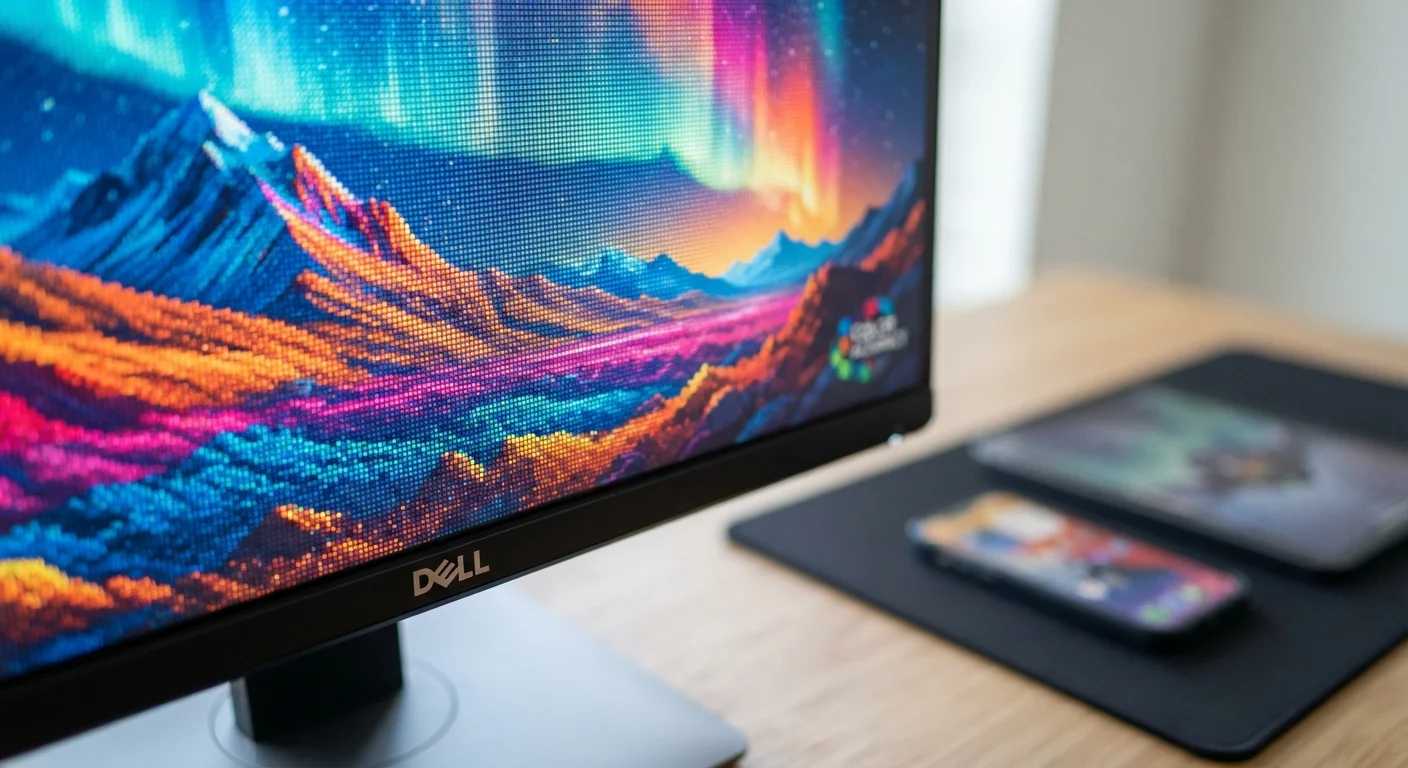
Every display - TV, monitor, phone, or tablet - is made up of a grid of tiny light-emitting dots called pixels. Screen resolution simply counts how many of those dots fit across the screen horizontally and how many stack vertically. The result is written as width × height.
A 1920×1080 display has 1,920 columns and 1,080 rows, for just over 2 million total pixels. A 3840×2160 (4K) display has about 8.3 million. More pixels means the display can render finer detail - curves look smoother, text looks crisper, and fine textures in photos or video appear cleaner.
Manufacturers condense these numbers into shorthand labels because the full figures are unwieldy. Understanding the translation is all you need to compare any two screens confidently. For a broader glossary of display terms, see our consumer electronics terms guide.
8.3M
Total pixels in a 4K UHD display
A 3840×2160 panel contains approximately 8.3 million pixels - four times the count of a Full HD 1080p screen.
~300 PPI
Approximate human visual acuity threshold
Most people cannot distinguish individual pixels above roughly 300 pixels per inch at a typical reading distance, which is the threshold Apple describes as 'Retina.'
15-25 Mbps
Bandwidth typically needed for 4K streaming
Streaming services generally recommend 15-25 Mbps for stable 4K playback, compared to around 5 Mbps for 1080p HD.
The Resolution Ladder: HD to 8K
The major resolution tiers, from lowest to highest commonly sold to consumers, look like this:
- HD (720p) - 1280×720: Once standard for broadcast TV. Now considered entry-level, mostly seen on small or budget screens.
- Full HD (1080p) - 1920×1080: Still the most common resolution for televisions and laptop displays. Delivers a sharp image at typical viewing distances on screens up to roughly 55 inches.
- QHD / 2K - 2560×1440: Popular on PC monitors and premium smartphones. Noticeably sharper than 1080p on screens between 24 and 32 inches, or handheld devices.
- 4K UHD - 3840×2160: Four times the pixel count of 1080p. The current mainstream premium tier for large-screen TVs and high-end monitors.
- 8K - 7680×4320: Exists in the market but native 8K content is extremely limited. The resolution benefit is only perceivable on very large screens viewed very closely.
Marketing labels can blur these lines - some screens advertised as "2K" are actually 1080p, and "4K" occasionally appears on panels that don't meet the full UHD specification. When in doubt, look at the pixel count in the spec sheet rather than the label.
Why Pixel Density Changes the Picture
Raw resolution only tells part of the story. A 4K resolution on a 75-inch television spread across a large panel will have lower pixel density than a 4K resolution packed into a 6-inch smartphone screen. Pixel density is measured in pixels per inch (PPI) - a figure calculated from both the resolution and the screen's physical size.
Human vision has limits. At a typical reading distance, most people can't distinguish individual pixels above roughly 300 PPI. This is the logic behind Apple's Retina label: it marks the point where the pixel grid effectively disappears from normal viewing. A higher PPI on paper may not translate to a visible difference for your eyes at the distance you actually use the device.
Viewing distance is equally important for televisions. A 4K TV watched from 10 feet may look indistinguishable from a 1080p set because the eye can't resolve that much detail at that distance. Sitting closer - or choosing a larger screen - is when 4K starts paying off visually.
Use PPI to Compare Screens Fairly
When evaluating two displays with different sizes and resolutions, calculate or look up their PPI rather than comparing resolution numbers alone. A 1080p laptop at 13 inches (around 166 PPI) may look sharper than a 4K television at 75 inches (around 59 PPI) viewed from the same distance. Most device spec pages or a simple online PPI calculator will give you the figure.
When Higher Resolution Genuinely Matters
Resolution has real-world consequences beyond sharpness. Streaming 4K content demands considerably more bandwidth than 1080p - typically 15-25 Mbps versus around 5 Mbps. If your connection is constrained, that higher resolution may cause buffering rather than a better experience. Understanding your actual internet speeds is a useful starting point; our guide to reading internet speed test results explains what those numbers mean in practice.
For PC users, higher resolution requires more graphics processing power to render games or video smoothly. A system that runs games at 1080p effortlessly may struggle at 4K without a more capable GPU.
Storage is another factor: a single minute of 4K video can occupy several times the space of the same minute in 1080p. For photographers and video editors, resolution choices cascade into storage and workflow decisions.
For most everyday consumers - watching TV from the couch, browsing on a laptop, or using a smartphone - Full HD or QHD covers all practical needs. The jump to 4K is most justifiable on large-screen televisions, close-range monitors, or professional creative work. Pair this knowledge with our overview of streaming devices to match your display choice with the right source equipment.
Resolution and Content Availability
Having a 4K screen doesn't automatically mean you'll watch 4K content. The source - a streaming service, a Blu-ray player, a cable box - must also support that resolution. Many cable and over-the-air broadcasts still transmit in 1080i or 720p. Check that your content sources and any intermediate devices (such as streaming sticks or AV receivers) support the resolution your screen is capable of displaying.