

Key Takeaways
Internet Speed Test
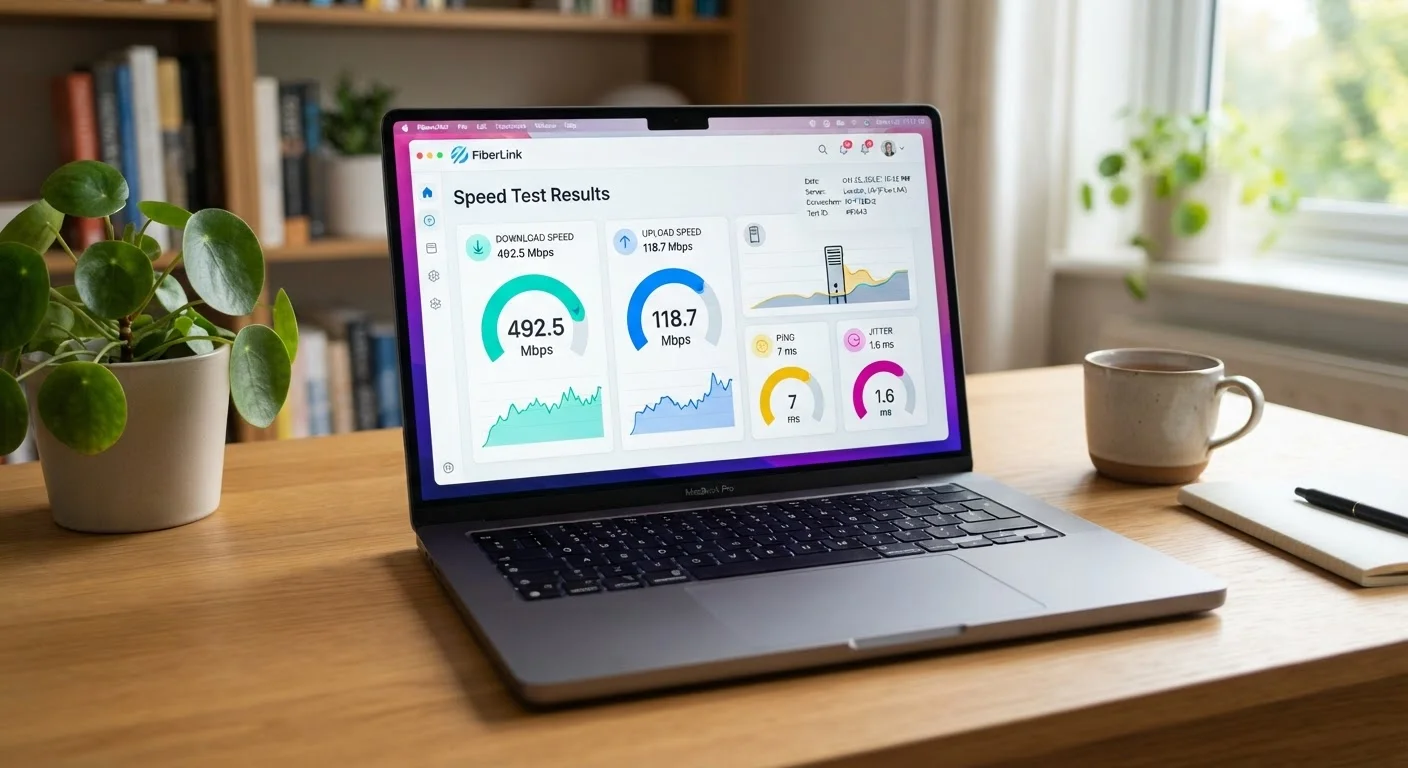
An internet speed test is a diagnostic tool that measures how fast data travels between your device and a remote server. It reports several metrics - download speed, upload speed, latency, and jitter - each reflecting a different aspect of your connection's performance. Running a test takes seconds, but understanding what the numbers mean helps you identify whether a slowdown is a real problem or just a misunderstanding.
Speed tests measure throughput between your device and a selected test server, so results can vary depending on server location, current network congestion, and whether you're testing over Wi-Fi or a wired connection.
The Four Numbers Every Speed Test Produces
When you run a speed test, you're not getting a single grade - you're getting a four-part report card. Each metric captures something distinct about how your connection behaves, and conflating them leads to real confusion about what's actually wrong (or right) with your service.
Before diving in, it helps to understand the units involved. If terms like Mbps or Gbps feel unclear, see our plain-language breakdown of internet speed units - it sets the foundation for everything below.
The four core metrics are:
- Download speed - how fast data moves from the internet to your device
- Upload speed - how fast data moves from your device to the internet
- Latency (ping) - how long a signal takes to travel to a server and return, measured in milliseconds (ms)
- Jitter - how much latency fluctuates from one moment to the next
100 ms
Maximum acceptable latency for video calls
Most VoIP and video conferencing providers recommend latency below 100 ms for acceptable call quality, with under 50 ms preferred.
10 ms
Jitter threshold for stable real-time audio
Network engineers generally consider jitter below 10 ms acceptable for voice and video calls; values above 30 ms commonly cause noticeable audio disruption.
300-600 ms
Typical latency for satellite internet
Geostationary satellite internet connections involve signals traveling roughly 22,000 miles to orbit and back, producing latency far higher than cable or fiber alternatives.
Download and Upload Speed: Not the Same Thing
Download speed gets the most attention because it governs the experiences most people care about - streaming video, loading web pages, and pulling files from cloud storage. A household with multiple simultaneous streams needs meaningfully higher download capacity than someone who browses alone.
Upload speed is often overlooked because ISPs have historically offered it at a fraction of download capacity. But upload matters the moment you're on a video call, backing up photos, or sending large files. During a video call, your camera feed is outgoing data - which means a sluggish upload shows up as pixelated or freezing video on the other person's screen, not yours.
Test Wired First When Troubleshooting
Before contacting your ISP about slow speeds, connect your computer directly to your router using an Ethernet cable and run the test again. If wired speeds match your plan but Wi-Fi speeds are significantly lower, the problem is your home network, not your ISP. This distinction saves time and often points to a simple fix like router placement or a firmware update.
If you want to understand how much of each you actually need, our article on how much internet speed your household actually needs walks through specific use-case estimates.
Latency and Jitter: The Numbers Speed Alone Can't Capture
A connection can have impressive download speeds and still feel sluggish or glitchy during real-time tasks. That's where latency and jitter come in.
Latency - often reported as ping - is the round-trip time for a small packet of data to reach a server and come back. Low latency means your connection responds quickly. High latency creates noticeable lag during video calls, gaming, and any interactive application. For a deeper look at these terms, our plain-English glossary on latency, ping, and packet loss covers each concept clearly.
Jitter measures how consistent your latency is. If your ping fluctuates between 15 ms and 90 ms from moment to moment, the average might look acceptable - but that inconsistency causes choppy audio and stuttering video. Jitter below 10 ms is generally considered stable for real-time communication.
Latency Varies by Connection Type
Fiber and cable connections typically deliver latency well under 20 ms. Fixed wireless and 4G home internet may sit between 30-70 ms. Geostationary satellite internet often exceeds 300 ms due to the physics of signal travel distance. If your use case is sensitive to latency - gaming, live streaming, or video calls - your connection type matters as much as the speed figures on your plan.
These two metrics are frequently misunderstood. Our article on common internet speed myths addresses why consumers often focus on the wrong numbers when troubleshooting.
Why Your Results May Not Reflect Your Plan
A speed test result is a snapshot of performance between your device and a test server at a specific moment. Several factors can make that snapshot misleading:
Wi-Fi vs. wired: Wi-Fi introduces signal loss, interference from neighboring networks, and physical obstructions. A wired Ethernet connection to your router almost always delivers faster, more consistent results - making it the right starting point when you're troubleshooting a suspected ISP problem rather than a home network issue.
Device limitations: Older laptops and phones have network adapters that may not support the full speed your plan offers. The bottleneck may be the device, not the connection.
Time of day: ISPs share bandwidth across neighborhoods. Testing during peak evening hours often yields lower speeds than early morning, when fewer users are active.