

Key Takeaways
Why Dead Zones Happen
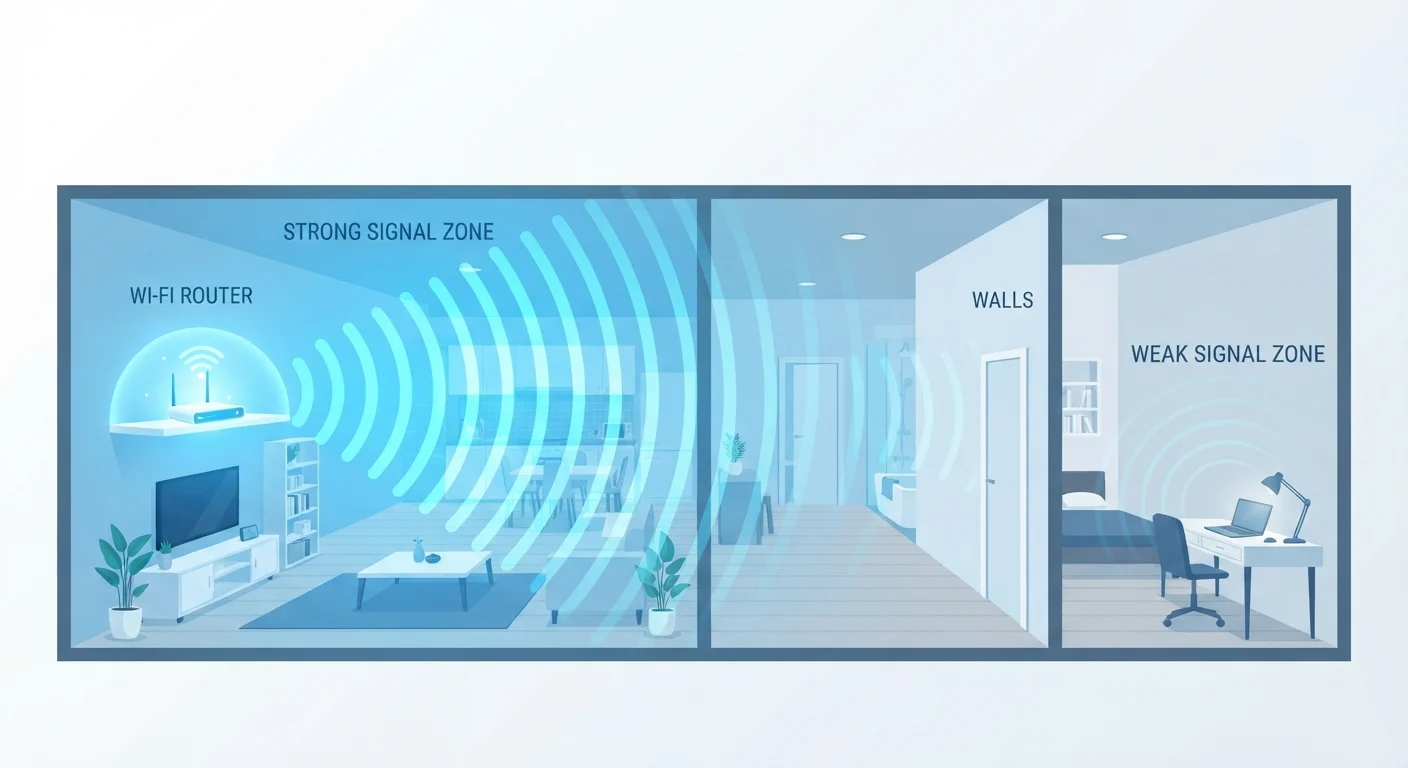
A Wi-Fi dead zone is any area in your home where your wireless signal drops to unusable levels - devices disconnect, streaming stalls, or pages refuse to load. These spots aren't random. They result from predictable, identifiable causes.
Physical barriers are the most common culprit. Wi-Fi signals travel as radio waves and lose strength every time they pass through a material. Concrete and brick walls absorb signals heavily. Thick wood, tile, metal appliances, and even water-filled fish tanks all reduce range. Homes with plaster walls containing embedded metal mesh (common in older construction) are especially prone to dead zones.
Distance from the router compounds the problem. Every router has a finite range - typically 150 feet indoors under ideal conditions - and real-world layouts frequently push devices well beyond that. A router sitting in one corner of a two-story home will struggle to reach the opposite corner of the floor above.
Radio frequency interference also degrades coverage. Cordless phones, microwave ovens, baby monitors, and neighboring Wi-Fi networks all compete on overlapping frequencies, particularly the 2.4 GHz band. The result is signal noise that reduces effective range.
Understanding why your home network underperforms is useful broader context - dead zones are one specific symptom of a wider set of network challenges.
Start with a Free Fix First
Most households can significantly reduce dead zones simply by moving their router to a better position - no hardware purchase required. Always try repositioning and band/channel adjustments before investing in extenders or mesh equipment. The structured steps below walk you through that process in order.
What You'll Need Before You Start
Before moving hardware or purchasing anything, take a few minutes to map the problem accurately.
What you will need
Wi-Fi Analyzer App
Displays signal strength (in dBm) at any location in your home so you can pinpoint where coverage degrades.
Ethernet Cable
Allows you to reposition your router temporarily without losing admin access during testing.
Wi-Fi Range Extender
Rebroadcasts your existing router's signal to cover a specific weak area, useful for targeted dead zones.
Mesh Wi-Fi System
Replaces or supplements a single router with multiple nodes for seamless whole-home coverage.
Powerline Adapter Kit
Uses your home's electrical wiring to extend wired or wireless connectivity to a distant room without running new cables.
Step-by-Step: Diagnosing and Fixing Your Dead Zone
Work through these steps in order. Many households resolve dead zones at step two or three without spending anything.
Map Your Signal Strength Room by Room
Open a Wi-Fi analyzer app and walk through every room, noting the signal strength reading (dBm). A signal stronger than −70 dBm is generally adequate for most tasks. Anything weaker than −80 dBm will cause noticeable problems. Mark on a rough floor plan where strength drops sharply - this tells you exactly where the dead zone begins and helps you identify which walls or obstacles sit between that area and your router.
Reposition Your Router to a Central Location
If your router sits in a corner, basement, or closet, moving it to a central, elevated, open location is the single highest-impact free fix available. Aim for the geometric center of your home's floor plan when possible, and position the router on a shelf or table rather than on the floor. Keep it away from thick walls, metal shelving, microwaves, and cordless phone bases. After repositioning, re-run your signal mapping to see how coverage has shifted.
Switch to the Right Frequency Band
Modern routers broadcast on two frequencies: 2.4 GHz and 5 GHz. The 2.4 GHz band travels farther and penetrates walls more effectively, making it the right choice for distant rooms. The 5 GHz band offers significantly faster speeds but drops off more quickly with distance and obstacles. If your router broadcasts both, connect devices in dead-zone-adjacent rooms to 2.4 GHz. Some routers allow you to name the bands separately so you can control which devices connect to which.
Change Your Router's Wi-Fi Channel
If neighboring networks are crowding your frequency band, switching to a less congested channel can meaningfully improve effective range and reliability. In your Wi-Fi analyzer app, identify which channels nearby networks use most heavily. In your router's admin interface, manually select a channel with less competition - for 2.4 GHz, channels 1, 6, and 11 are non-overlapping and are the only ones worth choosing. For 5 GHz, interference is less common but still worth checking.
Add a Range Extender or Mesh Node
If repositioning and band/channel adjustments don't fully resolve the dead zone, extending your network hardware is the next step. A range extender (also called a repeater) connects to your existing router wirelessly and rebroadcasts the signal - it's typically the lower-cost option but can create a separate network name and may halve throughput on the extended band. A mesh Wi-Fi system uses multiple coordinated nodes that communicate with each other, providing seamless roaming and generally better performance across larger or multi-story homes. Place any new node or extender halfway between your router and the dead zone, within your router's existing coverage area, not inside the dead zone itself.
Consider a Powerline or MoCA Adapter for Difficult Layouts
In homes where thick concrete, brick, or metal construction makes wireless extension impractical, wired alternatives can bridge the gap. Powerline adapters transmit data through your home's electrical wiring using a pair of plug-in adapters - one near the router, one near the dead zone. MoCA (Multimedia over Coax Alliance) adapters do the same using existing coaxial cable infrastructure, often with higher throughput. Both approaches deliver a wired ethernet connection in the problem area, which you can then use to power a second router or wireless access point for local Wi-Fi coverage.
Avoid Stacking Multiple Extenders
Connecting one range extender to another (daisy-chaining) compounds signal loss at each hop and typically produces a slow, unreliable network rather than solving the dead zone. If a single extender doesn't provide enough coverage, a mesh system is a more effective architecture for multi-zone problems.
If you're evaluating a whole-home hardware upgrade, the comparison between mesh systems and traditional routers is worth reading before you commit to a solution.