

Key Takeaways
Why Data Transfer Goes Wrong - and How to Prevent It
Switching smartphones is exciting until you realize your contacts are missing, your photos stopped at a random date, or your authenticator app codes didn't carry over. Most data loss during a phone switch isn't caused by a failed transfer - it's caused by skipping the backup step entirely, or assuming the transfer tool handled everything it didn't.
The safest mindset: treat your old phone as the source of truth until you've confirmed everything is accessible on the new one. That means backing up deliberately, transferring methodically, and verifying before you reset or trade in anything.
Two variables shape your approach: whether you're staying on the same platform (iOS to iOS, or Android to Android) or crossing over (iOS to Android or vice versa). Same-platform moves lean heavily on built-in tools. Cross-platform moves require a few more deliberate steps, particularly for app data and media. See our guide to syncing apps across devices for more on how data sync actually works behind the scenes.
What you will need
Step-by-Step: Backing Up and Transferring Your Data
Follow these steps in order. Don't skip to the transfer step - a backup you can restore from is your safety net if anything goes wrong mid-process.
Free up space and audit what's on your old phone
Before backing up, delete obvious clutter - duplicate photos, unused apps, large downloaded videos. A leaner backup is faster to create and restore. Check your photo library for any images saved only locally and not yet synced to the cloud.
Back up your old phone to the cloud or a computer
On iPhone: Go to Settings → [your name] → iCloud → iCloud Backup and tap Back Up Now. Alternatively, connect to a Mac or PC and use Finder (macOS Catalina and later) or iTunes to create a local backup.
On Android: Go to Settings → System → Backup (path varies by manufacturer) and enable Back up to Google Drive, then tap Back up now. Samsung devices also offer Samsung Cloud backup under Settings → Accounts and backup.
Wait for the backup to complete fully - don't interrupt it. Confirm the timestamp updates to show today's date and time.
Separately back up contacts and photos if not cloud-synced
If your contacts aren't already syncing to Google Contacts or iCloud, export them manually. On Android, open the Contacts app and export a VCF file to your Google Drive or email it to yourself. On iPhone, contacts sync automatically with iCloud when iCloud Contacts is enabled.
For photos, confirm that Google Photos or iCloud Photos has fully synced - look for a completion message, not just a progress spinner. If you use neither, copy photos manually to a computer.
Transfer data to your new phone
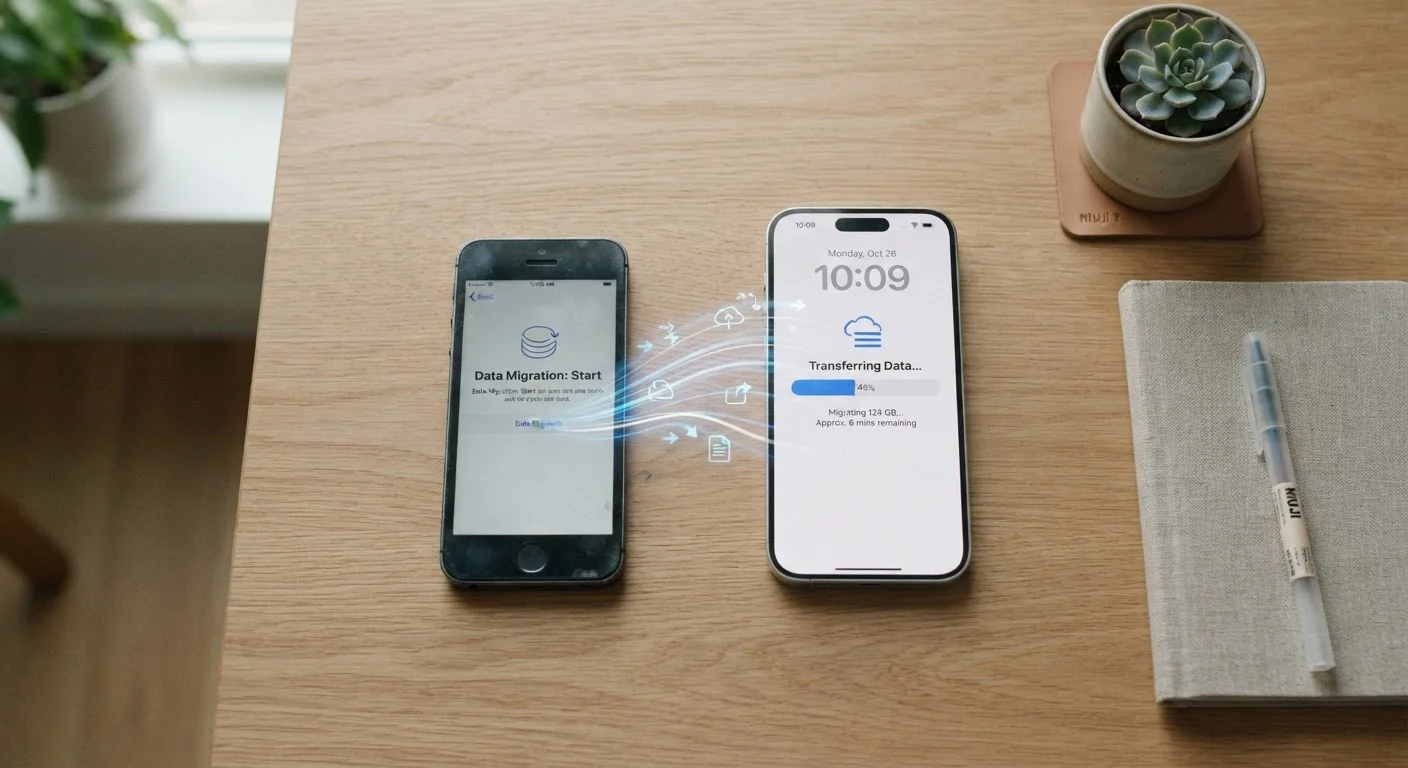
Same platform - iPhone to iPhone: During new device setup, choose Restore from iCloud Backup or use Quick Start (hold phones near each other) for a direct wireless transfer. Quick Start is the fastest option for most users.
Same platform - Android to Android: Most manufacturers provide a transfer app during initial setup (e.g., Google's built-in restore from a backup, or Samsung Smart Switch). Follow the on-screen prompts and keep both phones on Wi-Fi and plugged in.
Cross-platform - iPhone to Android: Use Google's Switch to Android app on your old iPhone, or manually transfer via Google Photos, Google Contacts sync, and re-downloading apps from the Play Store.
Cross-platform - Android to iPhone: Use Apple's Move to iOS app during iPhone setup. It transfers contacts, photos, videos, message history (from some apps), and free apps available on the App Store.
Verify everything before resetting your old phone
On your new phone, spot-check the following: open your contacts and scroll through a portion of them; browse your photo library and confirm recent photos are present; open two or three key apps and verify your account is signed in and data is accessible. Check your authenticator app if you use one.
Only after you're satisfied should you consider signing out of accounts on your old phone and performing a factory reset - which is required before trading it in or selling it.
Cross-Platform Moves Take Longer - Plan Accordingly
Switching between iOS and Android involves more manual steps than staying within the same ecosystem. Budget extra time for re-downloading apps, signing back into services, and reconfiguring settings that don't transfer automatically. Doing this on a weekend rather than a workday reduces stress significantly.
What Doesn't Transfer - and What to Do About It
Even a flawless backup won't move everything. Certain categories of data are routinely left behind:
- Two-factor authentication apps (such as authenticator apps that generate one-time codes): These must be migrated manually through the app's own export or account-transfer feature before you lose access to your old device. Missing this step can lock you out of accounts.
- In-app purchases and game progress: Progress stored only on-device - not in a cloud account - is lost. Many games offer cloud saves tied to a login; check each app individually.
- Banking and financial apps: These often require re-enrollment on a new device for security reasons. Have your account credentials ready.
- Encrypted local backups: If you used an encrypted iTunes/Finder backup on iOS, you'll need the password to restore it. Forgotten passwords cannot be bypassed.
Once your new phone is set up, it's a good time to review your security posture. Our article on keeping your devices secure without becoming a tech expert walks through lock screen, permissions, and update habits worth establishing on any new device.
Also worth noting: a new phone is an opportunity to audit your storage habits. If your last device filled up quickly, see why your phone storage fills up so fast before you repeat the same patterns on the new one.
Don't Trade In Your Old Phone Too Quickly
Trade-in programs and carrier promotions often create urgency to hand over your old device immediately. Resist this pressure until you've thoroughly verified your new phone has everything you need. Once a factory reset is performed and the device is returned, data recovery is not possible.