

Key Takeaways
What Two-Factor Authentication Actually Does
Two-factor authentication (2FA) is a security process that requires you to confirm your identity in two distinct ways before accessing an account. The first factor is typically your password - something you know. The second factor is something you have (like a phone or hardware key) or something you are (like a fingerprint). Even if someone steals your password, they still can't get in without that second factor.
The three main categories of 2FA you'll encounter in everyday apps are:
- SMS codes: A one-time code is sent via text message to your registered phone number. Convenient, but vulnerable to SIM-swapping attacks, where a bad actor tricks a carrier into reassigning your number.
- Authenticator apps: Apps like Google Authenticator or Authy generate time-sensitive codes locally on your device, with no carrier involvement. This approach is widely considered more secure than SMS.
- Hardware security keys: Physical USB or NFC devices that plug in or tap to verify identity. These offer the strongest protection but require carrying extra hardware.
For most everyday users, an authenticator app strikes the best balance between security and convenience. Pairing 2FA with strong, unique passwords - a habit covered in our guide to password managers - creates a significantly more resilient defense for your accounts.
Start With Your Most Critical Accounts
If enabling 2FA on every account feels overwhelming, prioritize accounts with the highest impact: email, banking, and any account that stores payment information. Your email account is especially important - it's often the gateway to resetting passwords on all other services.
What You'll Need Before You Start
Setting up 2FA is straightforward, but having a couple of things ready will make the process smoother.
What you will need
Most platforms walk you through 2FA setup inside their security or privacy settings. The steps below reflect the general process you'll find across the vast majority of apps, from email services and social networks to banking apps and streaming platforms.
How to Enable 2FA: Step-by-Step
Follow these steps to activate two-factor authentication on any app or platform that supports it.
Open the security settings of the app or platform
Log in to your account and navigate to Settings (sometimes labeled Account or Profile). Look for a section called Security, Privacy & Security, or Sign-In & Security. The exact label varies by platform, but it is almost always within the main settings menu.
Locate the two-factor authentication option
Inside the security section, look for an option labeled Two-Factor Authentication, Two-Step Verification, or Multi-Factor Authentication (MFA). Select it to begin setup.
Choose your preferred verification method
The platform will present one or more options: SMS text message, authenticator app, or hardware key. Select authenticator app if available - it avoids the carrier-dependent vulnerabilities of SMS. If you don't yet have an authenticator app, install one from your device's app store before continuing.
Scan the QR code or enter the setup key
If you chose an authenticator app, the platform will display a QR code on screen. Open your authenticator app, tap the option to add a new account (usually a + icon), and scan the QR code with your phone's camera. If your camera doesn't scan it cleanly, most platforms also offer a text-based setup key you can type in manually.
Enter the confirmation code to verify setup
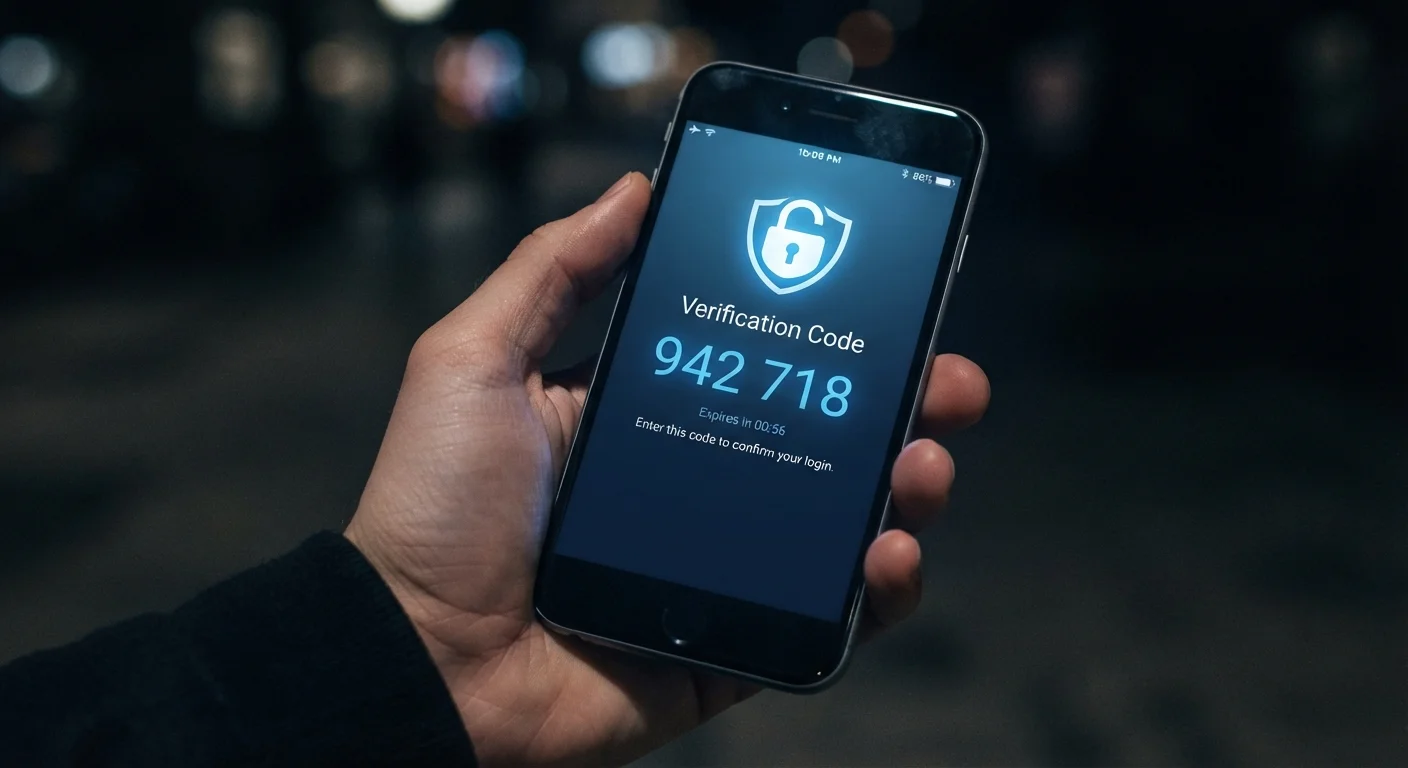
Your authenticator app will immediately display a six-digit code that refreshes every 30 seconds. Enter this code in the platform's setup screen to confirm that your authenticator app is correctly linked. The platform will validate the code and confirm that 2FA is now active.
Save your backup codes
Most platforms generate a set of one-time backup codes after 2FA is enabled. These allow you to access your account if you lose your phone or can't generate a code. Download or write down these codes and store them somewhere secure - a password manager is an excellent option, or print them and keep them in a safe place. Never store them in the same place as your password.
Once you've enabled 2FA, your login experience will change slightly: after entering your password, you'll be prompted to enter a code or approve a notification. This extra moment is a small trade-off for meaningfully stronger account security. For more habits that protect your devices day-to-day, see our article on keeping your devices secure without becoming a tech expert.
Don't Lose Access to Your Second Factor
If you replace your phone without first transferring your authenticator app data, you may be locked out of accounts protected by 2FA. Before switching devices, check whether your authenticator app supports encrypted cloud backup or offers an account-transfer feature. Always keep your backup codes accessible.