

Key Takeaways
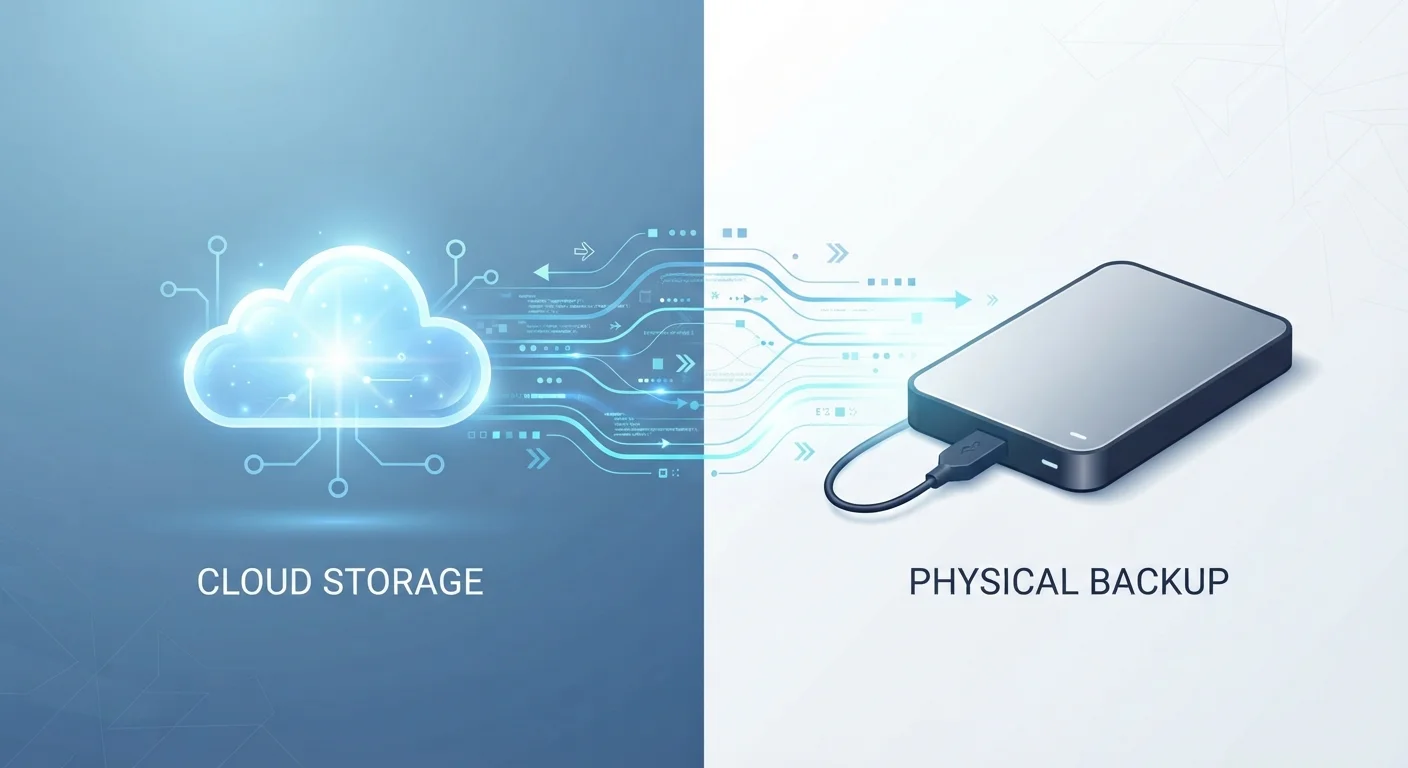
Option A
Cloud Storage
The anywhere-access, subscription-based approach.
Best for: Users who work across multiple devices or need to share files easily with others.
Option B
Local Storage
The self-contained, one-time-cost solution.
Best for: Users who prioritize offline access, privacy control, and avoiding recurring fees.
If you frequently switch between a phone, tablet, and laptop
Cloud Storage
Cloud services automatically sync files across all devices, so you always have the latest version available wherever you are.
If you handle sensitive personal or professional files and want maximum privacy
Local Storage
Keeping files on your own hardware means no third-party server ever holds your data, reducing exposure to external data breaches.
If you have a slow or unreliable internet connection
Local Storage
Local files are always accessible regardless of connectivity, eliminating frustrating delays when your network is weak or down.
If you want effortless disaster recovery in case your device is lost or damaged
Cloud Storage
Cloud services back up files automatically, so a stolen or broken device doesn't mean permanent data loss.
If you manage large collections of video, audio, or raw photo files
Local Storage
Uploading and streaming large media files can be slow and expensive via cloud; local drives handle high-volume storage at a fixed cost.
What Each Storage Method Actually Does
When you save a file to cloud storage, it travels over the internet to a remote server - typically maintained by a large technology company - where it's stored and made accessible from any internet-connected device. Services like this usually operate on a subscription model, offering a base amount of free storage with paid tiers for more capacity.
Local storage means keeping your files on physical hardware you own and control: the internal drive inside your computer or phone, an external hard drive, or a USB flash drive. No internet connection is needed to read or write those files, and no subscription is required.
The core distinction is control versus convenience. Cloud storage offloads the burden of managing hardware; local storage keeps everything in your hands - literally. If you've ever wondered why your phone's storage fills up so fast, understanding how and where your device saves data is the first step.
| Criterion | Cloud Storage | Local Storage |
|---|---|---|
| Internet required | Yes, to upload/access files | No, works fully offline |
| Multi-device access | Automatic sync across devices | Tied to the physical drive |
| Cost structure | Recurring subscription fees | One-time hardware purchase |
| Privacy control | Third-party servers hold data | You control the hardware |
| Data loss risk | Low - automatic backups | Higher without a backup plan |
| File sharing & collaboration | Easy, built-in sharing tools | Manual transfer required |
| Storage capacity limits | Scalable with subscription tier | Fixed by hardware purchased |
Access, Availability, and Everyday Workflow
Cloud storage shines when you need the same file on multiple devices. Edit a document on your laptop at home, then open it on your phone during a commute - the cloud handles the sync automatically. For collaborative work, cloud storage is nearly indispensable, since multiple people can view or edit the same file simultaneously.
Local storage, by contrast, ties your files to a specific device or drive. If that drive isn't with you, neither are your files. However, it comes with a significant advantage: it works without any network connection at all. In environments with poor connectivity - rural areas, airplanes, or during outages - local files remain fully usable.
For users juggling apps and data across several devices, understanding how sync works under the hood can clarify why files sometimes appear out of date. Our guide to syncing apps across devices explains the mechanics clearly.
64%
US adults using cloud storage
Pew Research Center surveys have consistently found that a majority of US adults store data online, whether through email, photos, or dedicated cloud services.
3-2-1
Recommended backup rule
Data recovery experts widely advocate keeping 3 copies of important files, on 2 different media types, with 1 stored offsite - combining local and cloud storage achieves this.
~20%
Annual hard drive failure rate by year 4
Backblaze, a cloud backup company, publishes annual hard drive reliability reports showing failure rates rise meaningfully as drives age past three to four years.
Security, Privacy, and Risk
Both storage types carry distinct risks that are worth understanding before committing to one approach.
With cloud storage, your files sit on servers you don't control. Reputable cloud providers use strong encryption in transit and at rest, and most offer two-factor authentication to protect your account. That said, a breached password or a compromised account can expose your data - and providers may be required by law to hand over data under certain legal processes.
Local storage eliminates third-party server exposure, but introduces physical risks: hardware failure, theft, fire, or flood can permanently destroy your files. A hard drive that fails without a backup is an unrecoverable loss. The security of local storage is ultimately as strong - or as weak - as the physical environment it's kept in and whether you've encrypted the drive.
A practical approach many people use: treat the cloud as the backup for important local files, and keep a local copy of critical cloud data. Good device security habits underpin both methods - see our guide to keeping your devices secure for foundational steps.
Encryption Is Not Automatic on Local Drives
Many people assume that because a file is on their own computer, it is automatically private. However, without drive encryption enabled, anyone with physical access to your device or drive can read your files. Most modern operating systems offer built-in disk encryption tools - enabling them adds a meaningful layer of protection to local storage without changing how you use your files day-to-day.
Cost and Long-Term Considerations
Local storage typically involves a one-time hardware purchase. External drives with substantial capacity are widely available and carry no recurring fees. Over several years, local storage is often the lower-cost option - assuming the hardware remains functional.
Cloud storage subscriptions are ongoing. While many services offer a modest free tier, most users eventually need a paid plan. Over time, those monthly or annual fees accumulate. That said, cloud subscriptions often bundle additional features: version history (which lets you recover older file versions), file recovery after deletion, and seamless device switching.
Ultimately, the right choice isn't always either/or. Many households and professionals use cloud storage for documents, photos, and files they access regularly across devices, and local drives for large media archives, sensitive records, or long-term backups. Thinking about where your files live is similar to thinking about where you keep your financial resources - convenience and accessibility matter, but so does security and redundancy.